
The Advanced Swap feature allows users to create custom swap requests with specific terms. You can define your preferred conversion rate and amount, giving you greater control over how and when your assets are converted. This is particularly useful when you want to set a target rate and wait for market conditions to meet your requirements.
Note: This feature requires Stellar Wallet activation before use.
How to Create an Advanced Swap
-
Navigate to Advanced Swap
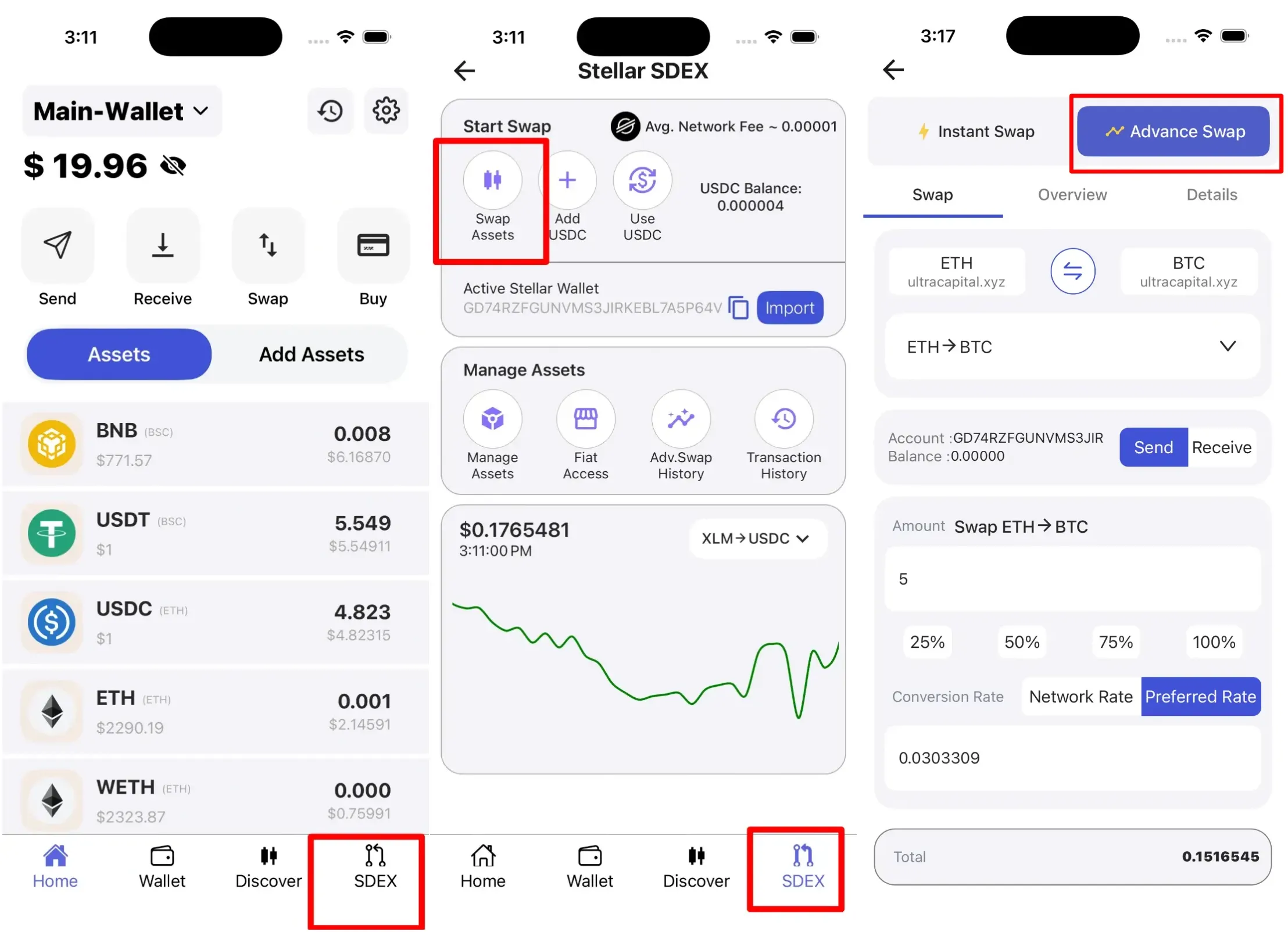
From your SwiftEx home screen, open the S-DEX tab to access Stellar-based features. Within the S-DEX interface, select Swap Assets to view available conversion options. Choose Advanced Swap to access the custom swap creation interface where you can set your own terms and conditions for asset conversion.
-
Select Asset Pair
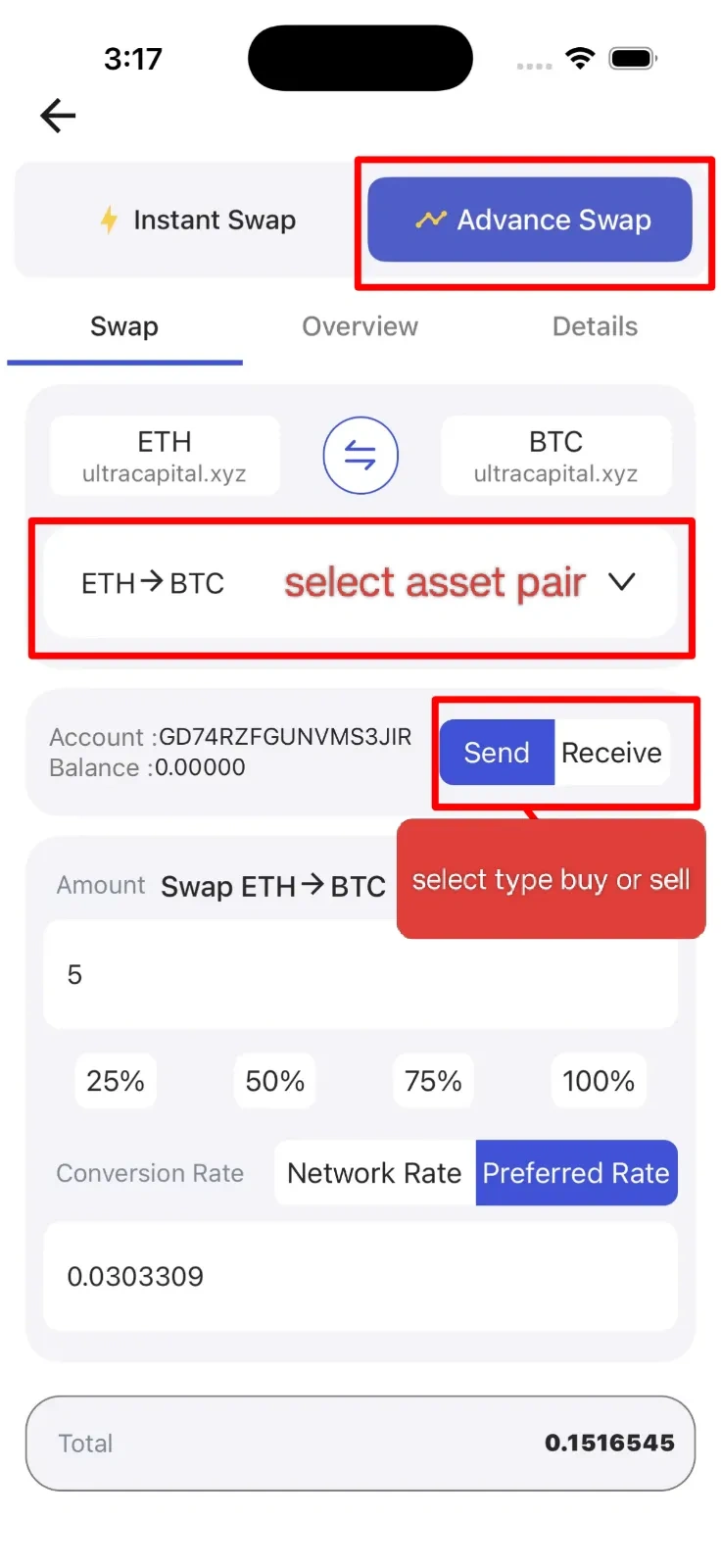
Choose the specific assets you wish to convert between. Select your source asset (what you're offering) and your destination asset (what you want to receive). The system will display your available balance for the source asset and show you the current market rate as a reference point. Make sure both assets are supported and that you have sufficient balance to create the swap request.
-
Set Swap Terms
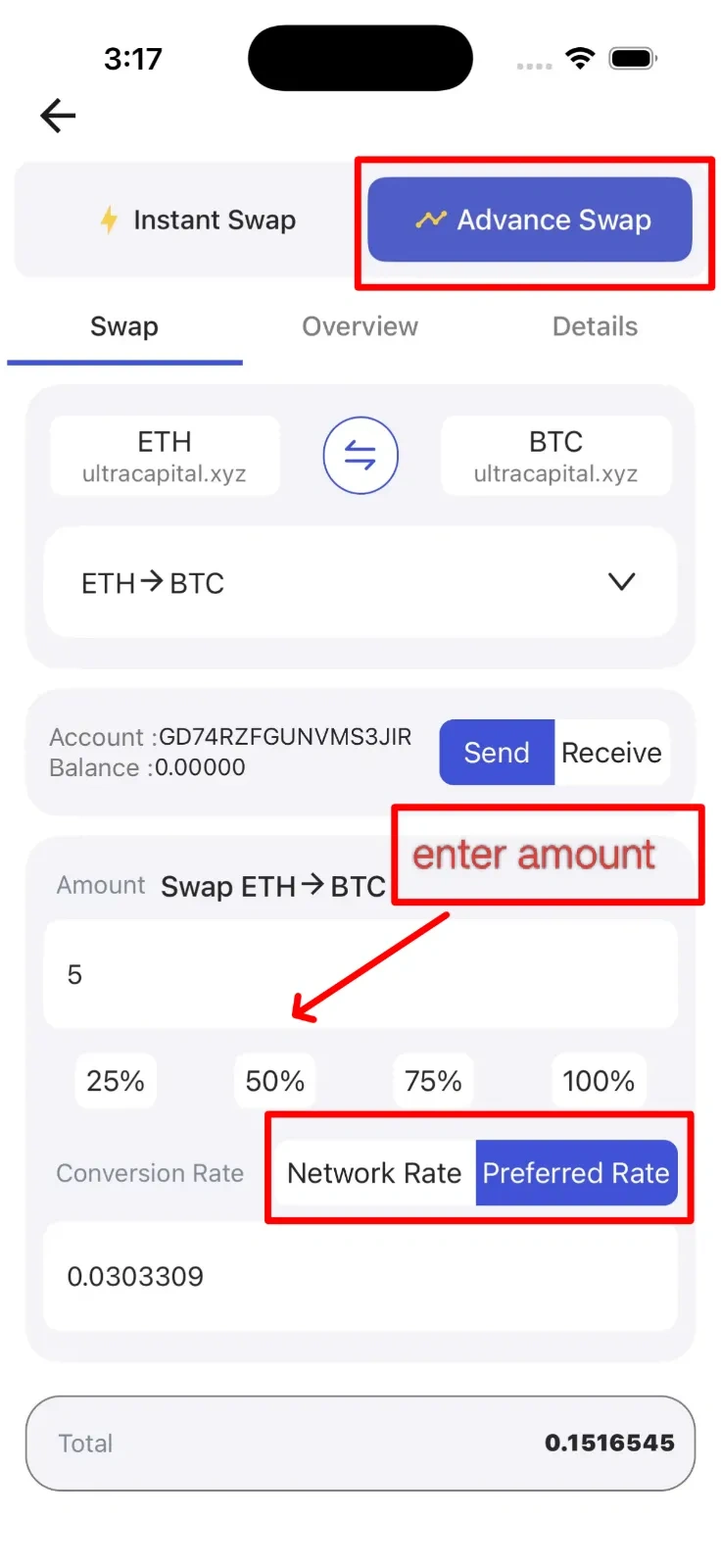
Now define the specific terms for your swap request. Enter the exact amount of the source asset you want to convert. Then, set your preferred conversion rate - this is the rate at which you're willing to convert your assets. You can set this rate above or below the current market rate depending on your strategy. The system will calculate and show you the expected output amount based on your chosen rate. Consider setting realistic rates that are more likely to be fulfilled.
-
Create Advanced Swap
you manually complete or cancel After reviewing your swap terms one final time, tap the 'Execute' button to create your swap request. Your request will be added to the swap pool where it remains active until one of three things happens: it gets matched with a compatible request, it, or it expires (if you set an expiration time). Your assets will be temporarily held while the request is active, ensuring they're available when a match is found.
Managing Your Swaps
You can easily monitor and manage all your active advanced swaps from the Advance Swap History section. This section shows the current status of each swap request, including details like creation time, rates, amounts, and matching progress. From here, you can view detailed information, modify certain parameters, or cancel any active swap request at any time before it's been fulfilled. Cancelled swaps will immediately return the held assets back to your available balance.